Today’s post brings you all about external and timer interrupts with microPython. We will be using Thonny IDE to program a Raspberry Pi Pico 2. The idea of this post is to blink and LED at the command of a push button.
Push button reading will use a hardware interrupt and LED blink will use a timer interrupt. One press on the push button will cause the LED to start blinking. Another press will cause it to stop blinking and go off. Most (if not all) microcontrollers nowadays are capable of handling interrupts, Raspberry Pi Pico 2 is not exception.
This article uses example and inspiration code from here and here, both amazing sources of knowledge. All we need for this experiment is a Raspberry Pi Pico 2 or an ESP32 (some board capable of running microPython). Besides of course one LED, one resistor and a push-button.

Hardware
As stated for dealing with interrupts with micropython, we will need a 820 Ohm resistor but it could be any value between 220 and 1200 Ohm. That is for the LED current limiting; it also depends on the color or your LED (I am using green). The push-button will not need any pull-up or pull-down resistor, since the pull-up is already inside the Pi Pico 2.
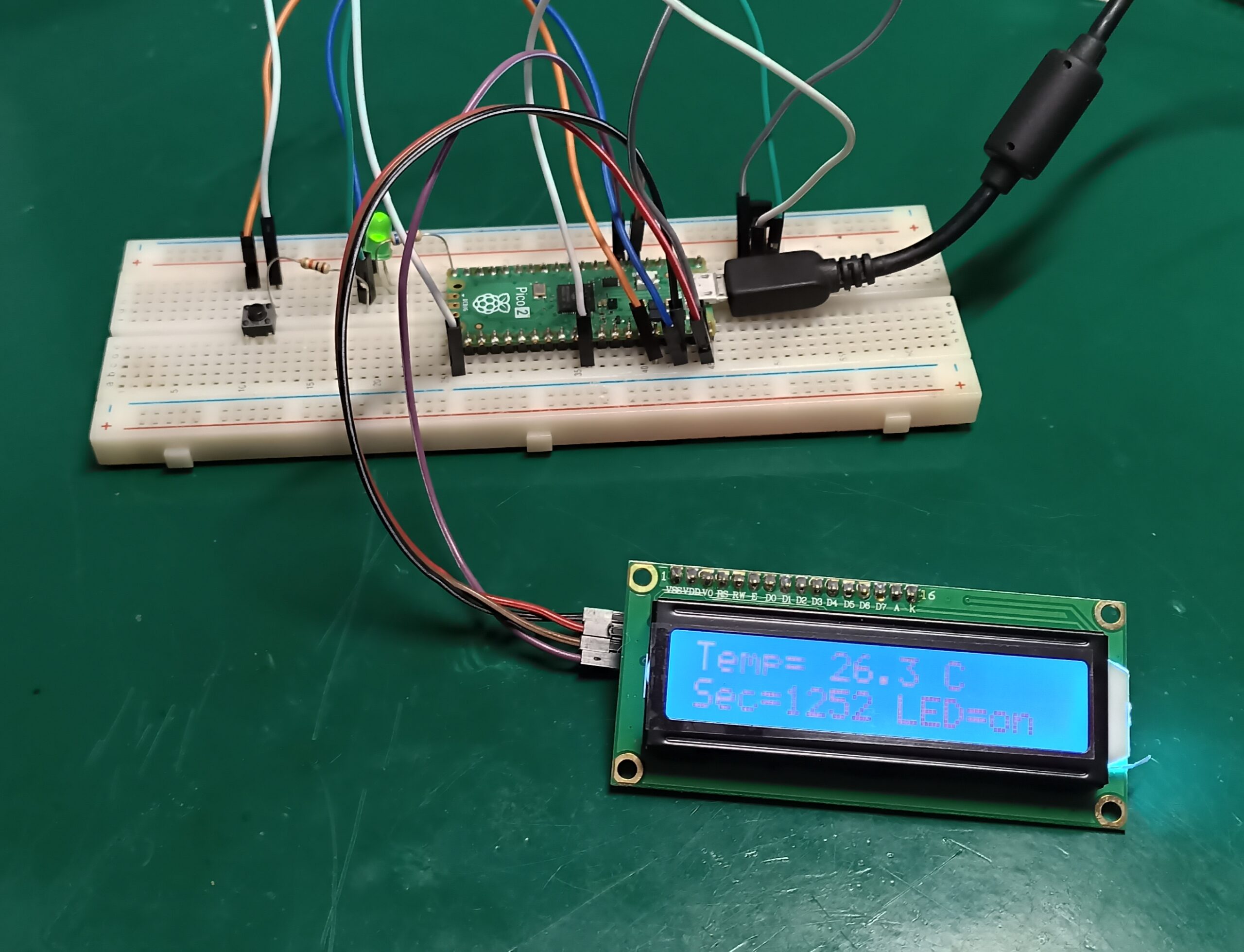
We are supplying the Raspberry Pi Pico 2 from the USB connection, at 5V. Circuit will be assembled on a 400-point breadboard. You could also use any other breaboard size, like the 830-points one. Full schematic diagram and photos are seen below, feel free to use and copy it. There was a previous post about buttons and LEDs here on the blog, if you want to ckeck.


Firmware/code
Thonny IDE software will be used to program our example. Download it from https://thonny.org/ and connect your boad to the USB of your computer. Then either select the board on the menu at the bottom right (image below), or go to “Tools > Options > “Interpreter” tab”.

Our full code for this example is seen below, includes both timer interrupts and external interrupts. I am explaining a bit of details for this code below the break.
from machine import Pin, Timer, ADC
import time

led = machine.Pin(16, machine.Pin.OUT)
#onboard = machine.Pin(25, machine.Pin.OUT)
button = Pin(15, Pin.IN, Pin.PULL_UP)
tempsensor = machine.ADC(4)

led.off()
#onboard.off()
buttonTime = time.ticks_ms()
buttonTime = 0
ledFundamental = 0
blinkState = False
tempcounter = 0

def toggle_led(timer):
    global blinkState
    global tempcounter

    if blinkState == True:
        led.value(not led.value())  # Toggle the LED state (ON/OFF)
        tempcounter= tempcounter + 1

        if tempcounter == 4:
            tempcounter = 0
            ADC_voltage = tempsensor.read_u16() * (3.3 / (65536))
            temperature_celcius = 27 - (ADC_voltage - 0.706)/0.001721
            print("Temperature: {}°C".format(temperature_celcius))

    else:
        led.value(0)

def callback(button):
    global buttonTime
    global blinkState
    # This IF is the debounce for the button reading. It also defines the blinking state
    # (on or off)
    if time.ticks_ms() - buttonTime > 400:
        buttonTime = time.ticks_ms()
        blinkState = not blinkState

button.irq(trigger=Pin.IRQ_FALLING, handler=callback)
blink_timer = Timer()
blink_timer.init(mode=Timer.PERIODIC, period=250, callback=toggle_led)  # Timer repeats every 0.25 seconds


# While True:  # This not necessary since we are handling everything
                # inside callbacks
Handling the push-button readings using interrupts is pretty easy. You just use the line below, defining whether you want to read the RISING or FALLING edge of the signal. You also define the function name to where your interrupt will go to execute.
button.irq(trigger=Pin.IRQ_FALLING, handler=callback)Similarly handling our timer interrupt is also straighforward. Here you have two lines, one for instantiating the Timer and the other to define period, callback function. In our case we will be directed to a function called “toggle_led” every 250ms (milliseconds).
blink_timer = Timer()
blink_timer.init(mode=Timer.PERIODIC, period=250, callback=toggle_led)  # Timer repeats every 0.25 seconds
Testing and results
Please note that none of those lines above should be inside the main function. In fact we don’t even have a main function in our code, not necessary for interruptions. Then finally we create and use the two necessary functions to execute our code (blinking an LED at the press of a push-button).
def toggle_led(timer):

# and

def callback(button):
Upon copying/pasteing the above code to your Thonny IDE (inside a new file), click “Save” and select “Rasbperry Pi Pico”, NOT your computer. Save it as “main.py” then click the green arrow on the top left of the screen (“Run current script (F5)”).
When you press the push-button, you will start seeing the LED blink and the message below being printed into the Shell of Thonny IDE (bottom of the screen).

I made a video explaining everything for you, enjoy and please comment in the form below. Also if you want to buy the Raspberry Pi Pico 2 from my affiliate link:
Top On Sale Product Recommendations!
Original Raspberry Pi Pico 2 2W RP2350 Microcontroller BoardDual Arm Cortex-M33 or Dual Hazard3 RISC-V Processor 150MHz
🔗Click & Buy: https://s.click.aliexpress.com/e/_oFRTatO